

How To Use PSD Mockups WITHOUT Photoshop! Video Tutorial
How To Use PSD Mockups WITHOUT Photoshop! Video Tutorial https://logosbynick.com/wp-content/uploads/2019/05/psd-mockups-without-photoshop-1024x602.jpg 1024 602 Nick Saporito https://secure.gravatar.com/avatar/8e31bf392f0ba8850f29a1a2e833cdd020909bfd44613c7e222072c40e031c34?s=96&d=mm&r=gMockup templates can give your designs a real-world appeal. Although these templates are intended for Photoshop, a simple web-based application will allow you to use PSD mockups without Photoshop. In this post I’ll be demonstrating exactly how to do so.
PSD Mockups
PSD mockups are pre-made Photoshop templates that are intended to give your designs a real-world look and feel. All you have to do is open the PSD template with Photoshop, drop your own design into the Smart Layer, then let the template work its magic in applying your design to the product.
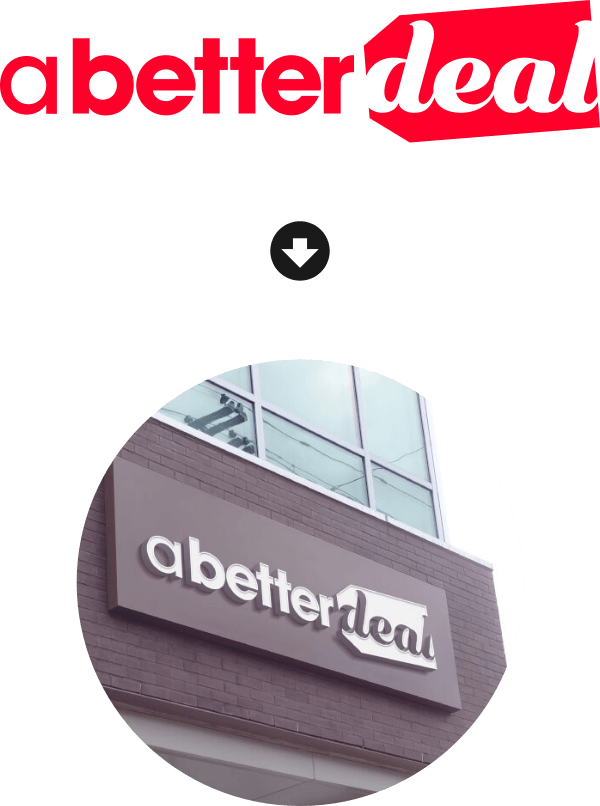
You’ve probably noticed that I make good use of them on my own portfolio…
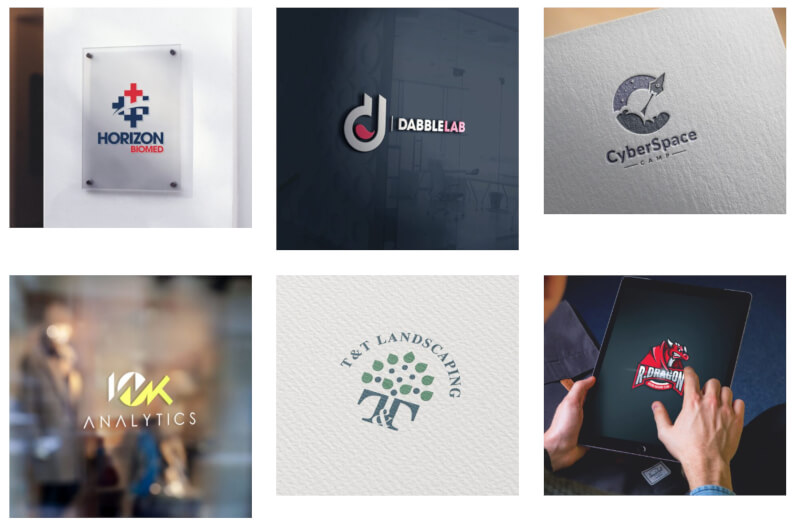
Depicting your design work in a real-world context adds a layer of intrigue. It makes your design look more professional, authoritative, and helps to “sell” it to potential clients. It gets them excited about the buying process because they’re envisioning what it would be like to have their own logo embroidered onto a hat or hanging from a large sign above their storefront.
Where To Download PSD Mockups
You don’t have to look very far to find mockup downloads; they’re all over the internet. There’s two different places I like to get my templates from — one for free templates and the other for premium templates.
Graphic Burger
A site for free design resources; mainly PSD mockups. Of all the different sites I’ve downloaded free mockup templates from, Graphic Burger seems to have the highest quality designs. They’ve also been very trustworthy in my experience so far.
You always have to be careful when downloading things on the internet, and PSD mockups are no exception. I’ve found that a lot of sites only have something free to offer if you’re willing to comply with their malicious conditions. Graphic Burger doesn’t employ such unscrupulous tactics though.
Creative Market
Creative Market is an online marketplace for premium user-generated design resources, including PSD mockups.
Their mockup templates are premium products of the highest quality, so you’ll have to fork over some cash for them. Fortunately they’re not too expensive (I’ve gotten some great templates for as little as $3,) and it’s a great investment if you’re using them to entice clients who might hire you for $800 logo projects.
You also may want to consider purchasing premium mockups if you’re looking for something really specific that you can’t find for free, like a giftcard mockup for example.
The Problem with PSD Mockups
The number one problem with using PSD mockups is that they’re intended for use with Photoshop, and since the majority of you who follow my content use open source software like GIMP and can’t justify Photoshop’s price tag, you’re left with no other option.
PSD files can be opened with GIMP, but GIMP can’t make use of Smart Layers, which is required to apply your design to the mockup. Same with Krita — Photoshop-generated smart layers are usually incompatible.
Fortunately, there’s a free web-based alternative to Photoshop known as Photopea.
Photopea
Photopea is, from what I can tell, a near clone of Photoshop that works within your web browser.
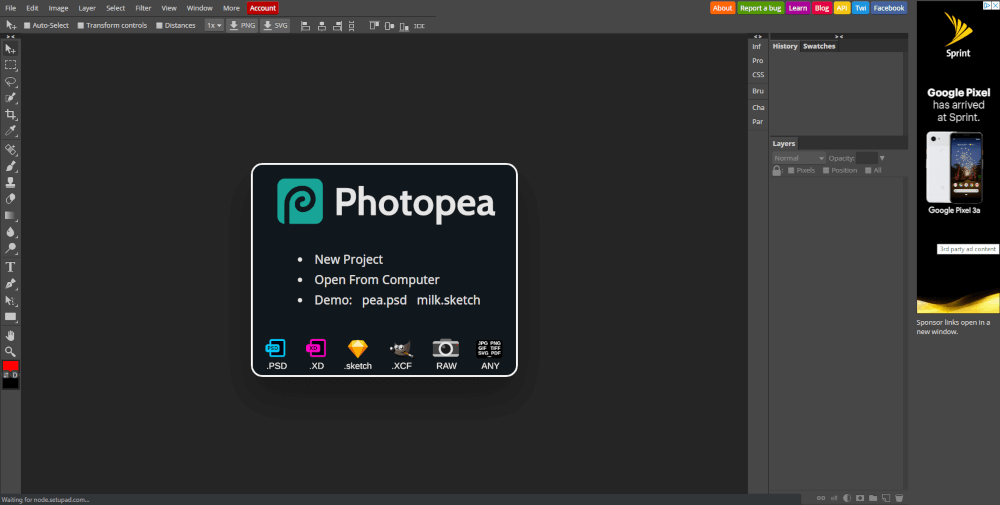
I tested it out with some PSD mockups and, sure enough, it works exactly as well as Photoshop does. And just so you know, I am in no way sponsored by or affiliated with Photopea. It’s just a website that I happened across when researching ways to use PSD mockups without Photoshop.
How To Use PSD Mockups Without Photoshop
That being said, let’s get started! Feel free to watch the video tutorial below if you’d prefer more in-depth instructions.
Step 1: Open Your PSD Mockup with Photopea
Go to File > Open and locate your PSD file to open it with Photopea.
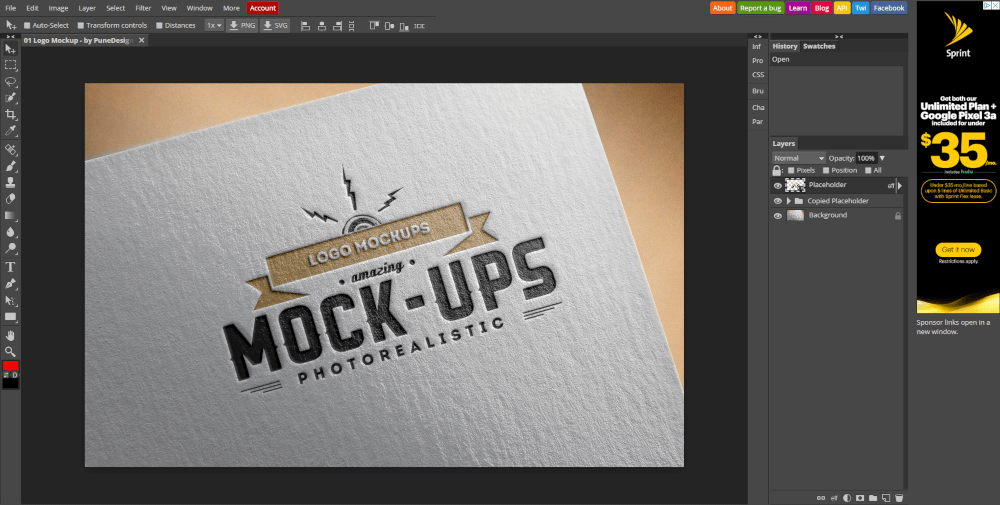
Step 2: Open The Smart Layer
Locate the placeholder layer in the Layers menu to the right of the screen, then double-click it. The layer will open in a new tab.
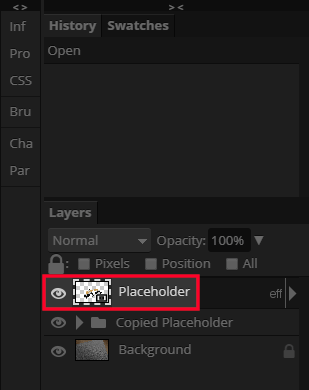
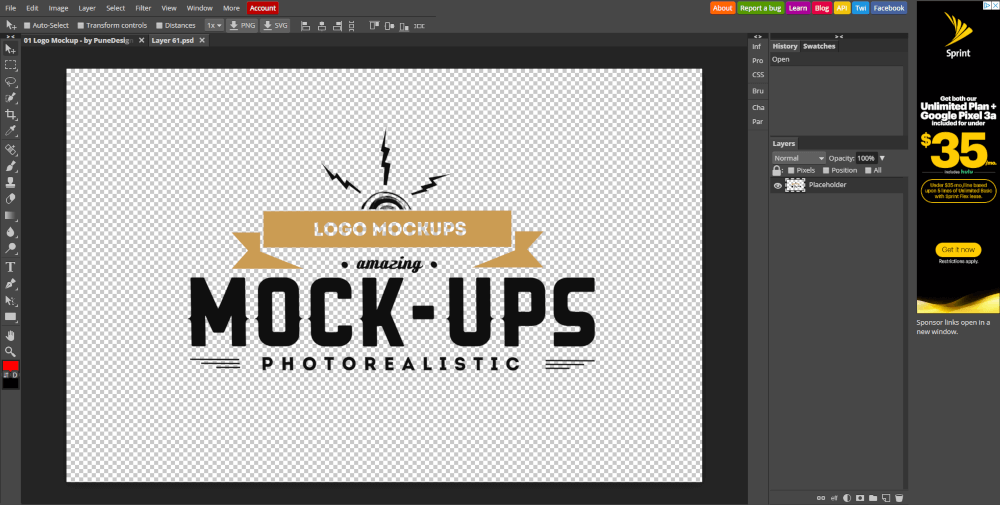
Step 3: Place Your Design In The Smart Layer
In the layers menu to the right of the page, turn off the visibility of the current layer in order to get rid of the placeholder design. Now click and drag your own design onto the canvas.
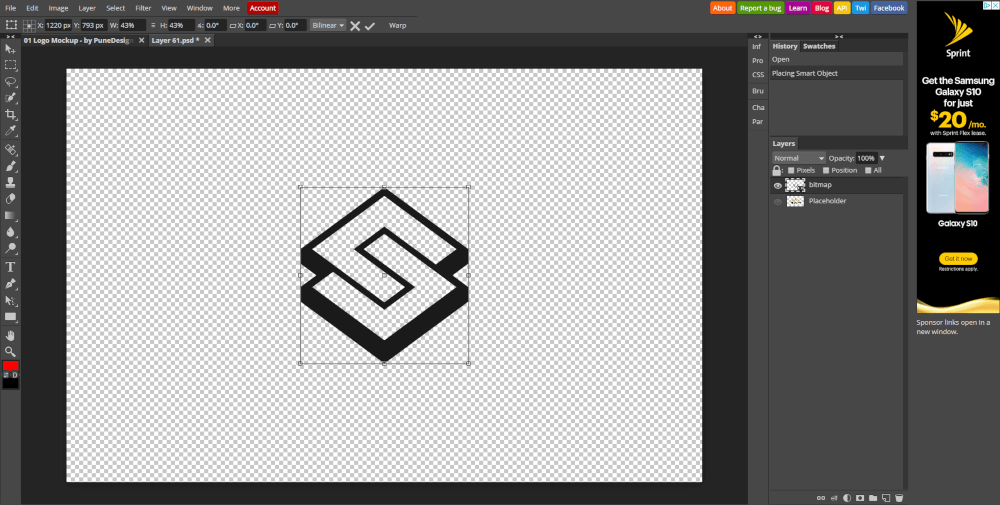
Make sure to scale it up or down accordingly.
Step 4: Save The Smart Object
Now to go to File > Save (Smart Object) then close out of the tab.
Once you close the tab you will be taken back to the original tab where the mockup template will be, only now it’ll have your design superimposed!
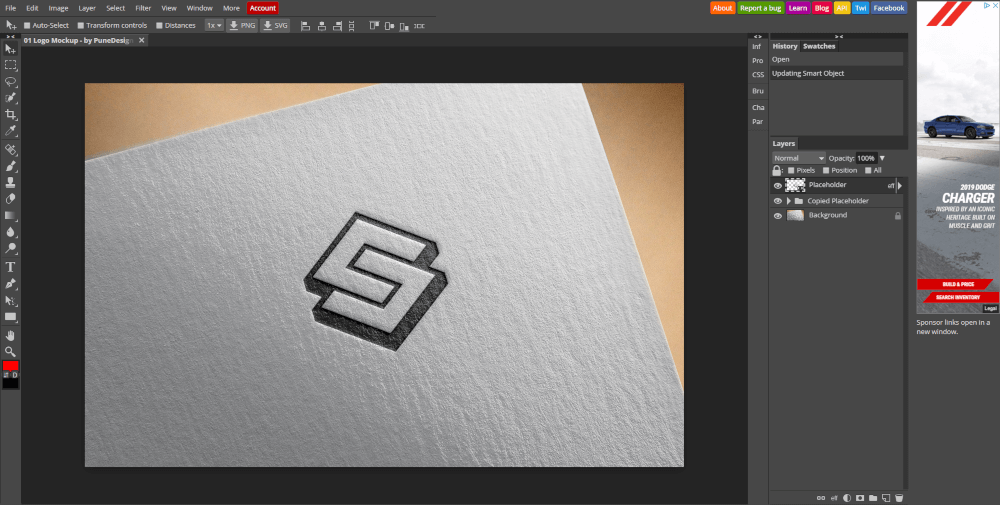
From there you can export and download your mockup by going to File > Export As and choosing your desired format.
And that is how you can use PSD mockups without Photoshop! If you have any questions simply leave a comment below, and as always, thanks for watching!
Learn To Master The SoftwareGain a complete understanding of your favorite design apps with my comprehensive collection of video courses. Each course grants access to our private community where you can ask questions and get help when needed.
|
||||||||||||||||||||||||||||||||
 81 Videos
 11 Modules

You might also like
27 comments
-
-
-
-
deadpool
Hi, thanks for the video. Some things have recently changed in photopea and it doesn’t seem to work the way you show it anymore. I can’t figure it out. Can you help with that, please?
-
Jolene
Oh my gosh, you should see the smile on my face that finally replaced the tears of hours and hours of effort to figure this out. THANK YOU so much.
-


Comments are closed.
Mark
Hello sir, I tried using photopea, but once I bring in my design to the 2nd layer, my design will appear upside down and reversed mirror. The output didn’t copy the mock up. I tried with another phone and it was same problem. Please help me guys.