

Design Print Ready Business Cards with GIMP
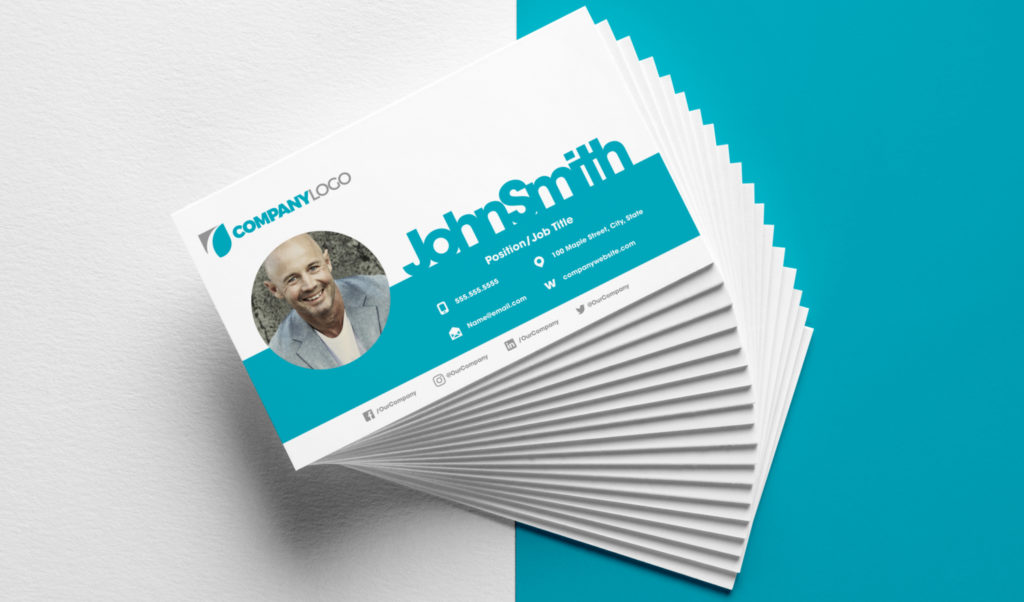
Design Print Ready Business Cards with GIMP https://logosbynick.com/wp-content/uploads/2018/05/create-business-cards-gimp-tutorial-1024x602.jpg 1024 602 Nick Saporito https://secure.gravatar.com/avatar/8e31bf392f0ba8850f29a1a2e833cdd020909bfd44613c7e222072c40e031c34?s=96&d=mm&r=gIn today’s tutorial I’ll be demonstrating how you can use GIMP to design a print-ready US standard size 3.5″x2″ business card with a 0.25″ bleed and safe area, set at 350 DPI. These are the typical settings used by your average print shop, including online print services like VistaPrint and GotPrint. However, if you’re working with a print shop that uses different settings, just swap out my numbers with theirs as you’re following the tutorial.
Fonts
The first thing you’ll want to do, before launching GIMP, is download and install the font files I used in this tutorial.
The main font used for the name is Montserrat Heavy and the rest of the text used Tex Gyre Adventor Bold.
Business Card Template
Next we’re going to do is set up our document so that it’s 3.5″x2″, but with the bleed added it’ll be 3.75″x2.25″. We will then add guides to the document to account for these spaces.
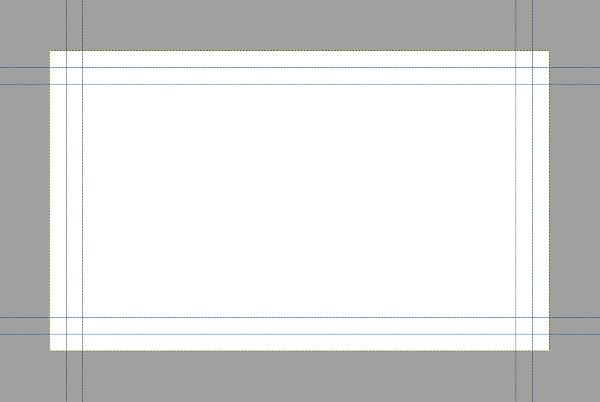
At this point I would recommend saving the document as a XCF file so you’ll have a template ready to use whenever you’re designing business cards in GIMP. In fact, you can simply download a copy of this template here: business-card-template.zip.
Head Shot
Now that we have everything arranged, it’s time to start the actual design work. The first thing I did was add the head shot to the design. You can use your own image, your clients image, or you can use the example I used in the tutorial. Download the example image here…

Click to enlarge
Contact Icons
In the final design you will see that I used contact icons for each piece of contact info. Those icons can be downloaded here: Free Contact Icons For Business Cards
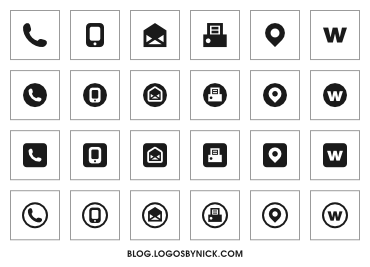
The social media icons that I used can be downloaded here: Social Media Icons SVG

Video Tutorial
Watch the following video for the complete step-by-step tutorial with voice narration. If you have any questions let me know, and as always, thanks for watching!
Learn To Master The SoftwareGain a complete understanding of your favorite design apps with my comprehensive collection of video courses. Each course grants access to our private community where you can ask questions and get help when needed.
|
||||||||||||||||||||||||||||||||
 81 Videos
 11 Modules



You might also like
14 comments
-
-
Nick Saporito
Just import the SVG file into whatever document you’re working on. If you’re using Inkscape you can click and drag the file onto your canvas and it’ll import them. If you’re using Illustrator go to File > Place and select the file.
-
-
mj Palm
Hi again Nick,
I want to write vertical text in the business card. When I use rotating in Gimp, the text seems to lose quality. Is there any way to avoid this?
Many thanks,
mj -


Comments are closed.
Gabriel Negumbo
Hi Nick,
What do i do after i download the contact and social media icons so i can be able to use them.
I’m really struggling.
Regards!