


Vector Image Tracing with Affinity Designer | 3 Solutions
Vector Image Tracing with Affinity Designer | 3 Solutions https://logosbynick.com/wp-content/uploads/2021/03/affinity-designer-image-trace.png 800 470 Nick Saporito https://secure.gravatar.com/avatar/8e31bf392f0ba8850f29a1a2e833cdd020909bfd44613c7e222072c40e031c34?s=96&d=mm&r=gHaving the ability to trace vector copies of your images is a standard feature of any vectors graphics software. For Affinity Designer users though, we’re out of luck. Designer, for whatever reason, does not possess the ability to do this. Although there’s no auto image trace feature built in, you can still do vector image tracing with Affinity Designer using the Pen Tool. There’s also a few alternative solutions available that may be worth considering.
Image Tracing
Vector image tracing is when your design software uses an algorithm to automatically generate a vector tracing of a raster image:

Tracing software automatically generates vector tracings of raster imagery.
The benefit of using a feature like this is that it saves a bunch of time. The downside is that the results are often random and imprecise. Regardless, automated vector tracing still has a place in a designer’s toolbox. I’ve found it to be very useful for creating vector textures.
In Inkscape, this feature is called Trace Bitmap. In Illustrator, it’s called Trace Image. In Affinity Designer though, it doesn’t exist.
Affinity’s Lack Of Image Tracing
For whatever reason, there is no image trace in Affinity Designer. Will vector image tracing be possible in the future? Who knows.
That said, we still have a problem to solve. What can you do to trace an image to vector if you’re an Affinity Designer user? Let’s explore.
Vector Image Tracing with Affinity Designer
| Unfortunately, there is no image trace feature built into Affinity Designer. You will either have to draw your vector tracings manually using the Pen Tool, or use an alternative solution. |
Considering that we can’t auto-trace our image, we have three options:
- Solution 1: Create A Manual Tracing
- Solution 2: Use Inkscape
- Solution 3: Use An Online Converter
Let’s explore these options in more detail.
Solution 1: Create A Manual Tracing
The only real way to go about vector image tracing with Affinity Designer is to do so manually using the Pen Tool.
This can be done by simply drawing individual elements right on top of your image, and then coloring them in using the Color Picker tool. In fact, I created a video tutorial demonstrating how to do so:
This method may be right for you if your image is simple enough to trace manually, or if you have something that needs to be traced with precision.
The downside of using an automated tracing feature is that it very rarely traces over your image with absolute precision. However, if your design is large and complex, then manually tracing it probably isn’t the best approach, or even possible for that matter.
If this describes you then you may want to consider one of the other two solutions.
Solution 2: Use Inkscape
Inkscape is a free and open source vector graphics editor that is similar to both Adobe Illustrator and Affinity Designer.
Inkscape is a free and open source vector graphics editor.
Any regular visitor to this website is surely no stranger to Inkscape. I’ve used it as my preferred vector graphics tool for over a decade, and have served thousands of freelance clients with it.
I know the feeling of hesitation that comes with downloading yet another application though — especially if it’s to use a really standard feature that wasn’t included in a product you purchased. I promise you though, Inkscape is worth a try. Believe it or not, it’s capable of far more than Affinity Designer is.
Once you have Inkscape opened, all you have to do is import your image and open the Trace Bitmap menu by pressing Shift + Alt + B on your keyboard. From there the UI is pretty self-explanatory, but feel free to check out this tutorial I made in case you need help:
The benefit of using this solution is that you’ll be able to make auto-generated vector tracings of your images using Inkscape’s powerful Trace Bitmap feature. Not only that, but Inkscape is the only vector graphics editor available on all three operating systems — Windows, Mac, and Linux.
The downside of using this solution is that you have to download yet another application, and then launch that application just to use it for a single task. However, Inkscape is a very lightweight program that isn’t demanding on your hardware, and unlike Illustrator, it doesn’t have a parent app (Creative Cloud) running in the background at all times.
Solution 2: Use An Online Converter
Finally, if a lack of vector image tracing with Affinity Designer is frustrating you, and you don’t want to download any other applications, then you can always use an online vector tracing service.
Based on a quick Google search, there’s clearly no shortage of these websites available at your disposal. A common name that kept coming up in my research though Vector Magic:
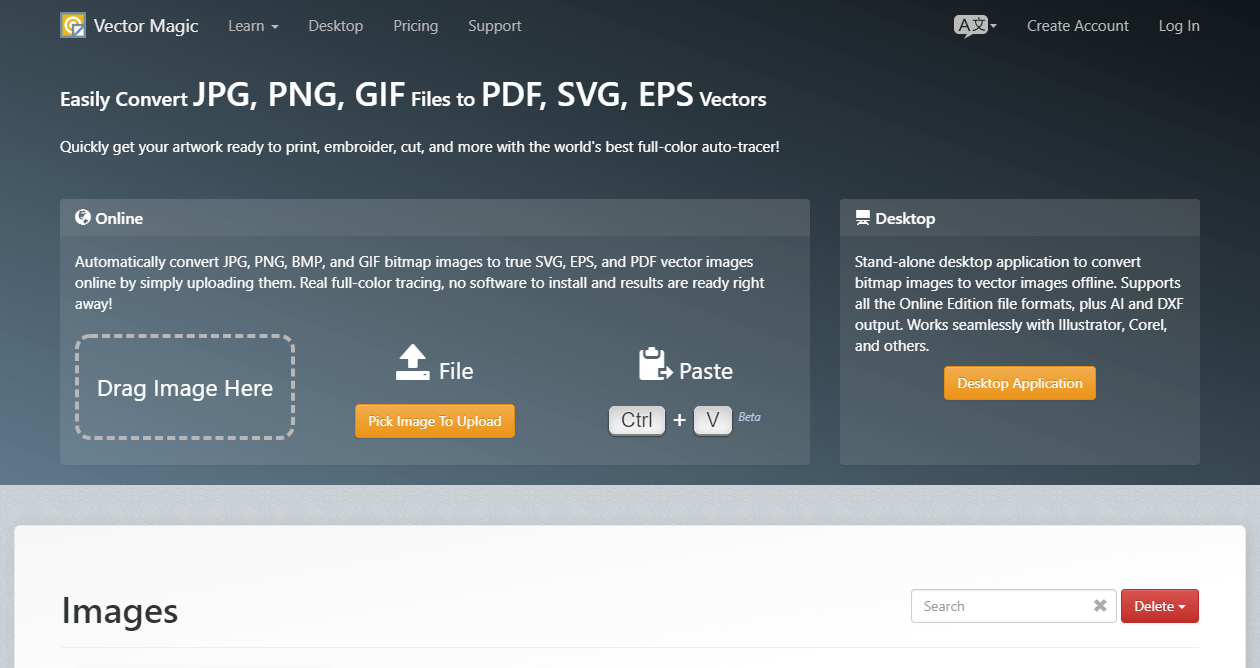
Vector Magic is one of many online tools for tracing images to vector.
I don’t know anything about this website personally, and I haven’t used any other web-based services like it, but based on the results I got with my example image, I’m impressed!

Not bad for an online converter!
The benefit of using a web-based solution like Vector Magic is that you can easily create vector tracings of your images, without having to download any other applications or use any third-party plugins.
The downside, however, is that you’re limited to only color tracings. You can’t make simple black & white silhouettes from your photos like you can with Inkscape and Illustrator.
Another downside to this approach is that when I used it, it was really slow. It took a couple of minutes just for it to trace my example image, whereas Inkscape and Illustrator are nearly instantaneous.
This may not be a big deal for you, but if you’re strapped for time then it would pay to have Inkscape installed so you can quickly create your vector tracings in the future without having to wait for a web server.
Conclusion
Vector image tracing with Affinity Designer is possible through manual drawing, although it’s not always a viable solution. It depends on your image, its composition, and what you’re trying to accomplish. However, there are alternatives you can utilize when manual tracing isn’t an option, like Inkscape and online converters.
Between those three options you should be able to meet all of your vector tracing needs, as cumbersome as it may be. If you’re anything like me then you’re probably a little disappointed that such a feature doesn’t exist in Affinity Designer. Let’s hope this changes.
What are your thoughts? Have you tried any other solution that you found helpful? I’d love to hear about it. Feel free to post any questions you may have as well if any part of this lesson was unclear.
Learn To Master The SoftwareGain a complete understanding of your favorite design apps with my comprehensive collection of video courses. Each course grants access to our private community where you can ask questions and get help when needed.
|
||||||||||||||||||||||||||||||||
 81 Videos
 11 Modules




You might also like


23 comments
-
-
Nick Saporito
Hi Nathan, not always. Image tracers in general aren’t very accurate when it comes to the finer details. It’s worth a try though.
-
-
loukash
Surprisingly enough, there actually IS a very rudimentary tracing tool in Affinity Publisher.
See my thread here: https://forum.affinity.serif.com/index.php?/topic/179630-unexpected-feature-vectorize-a-bitmap-image-directly-in-publisher -
-
-
Michael
How does Affinity designer compare with Corel Draw? I’m looking into either Affinity or Corel to replace Adobe.
-
Nick Saporito
I’m not sure, I’ve never used CorelDraw. Based on its price though, I can’t imagine it being a good deal based on what Affinity Designer is capable of for just $60.
-
Michael
I’ve been looking at both and Affinity Designer looks to be the better choise considering how low the price is compared to CorelDraw.
Is working in Affinity Designer close to how Adobe Ilustrator works?
-
Nick Saporito
Yes, Affinity Designer feels very similar to Iluustrator in terms of UI and functionality. It’s also simplified and more organized. Check out my comparison of each here: https://logosbynick.com/affinity-designer-vs-illustrator/
-
-
-


Comments are closed.
Nathan Philips
Thank you for sharing such an intriguing article. I have a slight doubt regarding the mention of using an online converter. Do online converter tools possess the ability to handle complex or irregular shapes effectively?