

7 Reasons Why Union Is Not Working In Inkscape | Path Functions
7 Reasons Why Union Is Not Working In Inkscape | Path Functions https://logosbynick.com/wp-content/uploads/2020/04/union-not-working-in-inkscape.png 800 470 Nick Saporito https://secure.gravatar.com/avatar/8e31bf392f0ba8850f29a1a2e833cdd020909bfd44613c7e222072c40e031c34?s=96&d=mm&r=gMerging objects together via the Union path function is one of the most basic and frequently-used functions in Inkscape. However, it doesn’t always work the way you expect it to work. In this post I’ll be covering 7 common reasons why union is not working in Inkscape. This also applies to other path functions like difference and intersection as well.
Path Functions
Path functions in Inkscape allow you to dictate how objects interact with each other. You can merge objects together, use one to cut a hole in the other, create a new object from the intersecting area of several objects, etc.
As powerful as path functions are though, they don’t always work as expected. This is usually because path functions only work on individual objects that are paths. So this means objects like raster images, clips, and masks are excluded (for the most part.)
One problem you may run into frequently if you’re a newcomer to Inkscape is certain path functions (like Union) not working. This is something that used to confuse me as well when I was learning Inkscape. It may not make sense just yet, but I can assure you there is a logical explanation for why union is not working in Inkscape. Let’s explore some of the reasons this may be happening.
Common Reasons Why Union Is Not Working In Inkscape
| If a basic path function like Union is not working in Inkscape, it’s because path functions only work on individual objects that are paths. Make sure that your objects aren’t grouped together. |
Reason #1: Your Objects Are Grouped Together
The most common reason why union is not working in Inkscape is usually because you’re trying to unify objects that are grouped together.
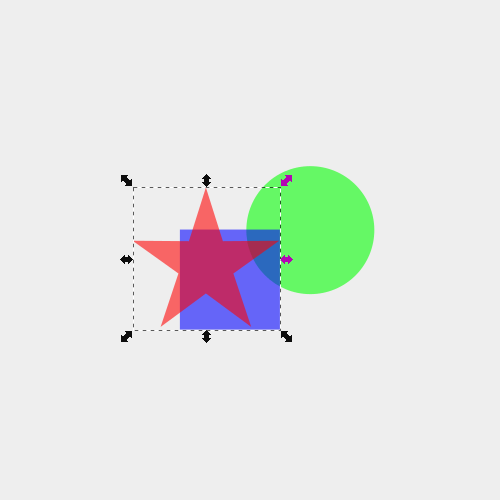
Path functions (like union) only work on individual objects that are paths. They will not work on objects that are grouped together, so make sure to ungroup your objects by pressing control + shift + g (you may have to do this a few times to completely ungroup everything) then try again.
Reason #2: Text Objects
Performing path functions on text objects is a little tricky. If your text object is still an editable text object then all of the path functions should work just fine.
You can determine if it’s still a text object by referencing the little node in the bottom-left corner of the object. You can also grab the Text Tool and see if it’s still editable.
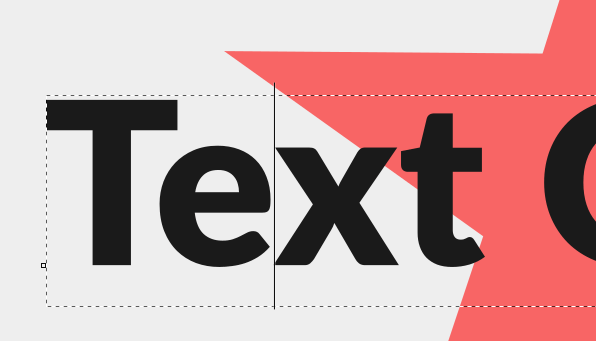
However, if you have converted your text object to a path then the path functions will not work. The reason for this is because when you convert a text object to a path, the result is a grouping of individual letters, and as I’ve outlined above, path functions do not work on groups of objects. So the fix for this is to simply ungroup your text object.

Reason #3: Strokes and Lines
Certain path functions (like union) only work on objects that have a fill area. In the following example, the green circle has a full area, but the black stroke does not.
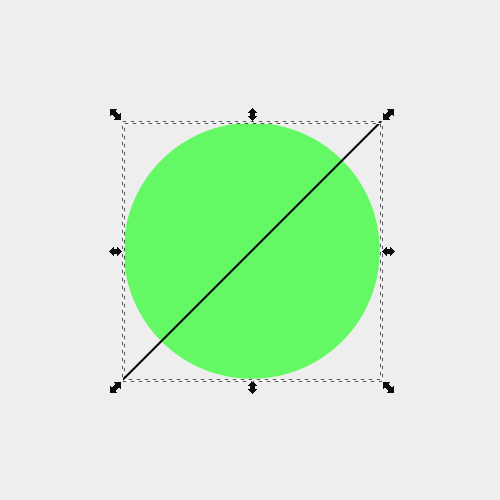
Since there’s no fill area of the black line, there’s nothing there to merge with the green circle as far as Inkscape is concerned. If you unify these two objects together, you’re just going to end up with a green circle.
If you want to unify the line and the circle together, you’ll first have to convert the stroke to a path by selecting it and navigating to Path > Stroke to Path. When you do this, the black line essentially becomes the fill area and you should be able to unify them now.
Reason #4: Clipped Objects
Another reason why union may not be working as expecting is because you’re trying to apply it to an object that is clipped with another object.
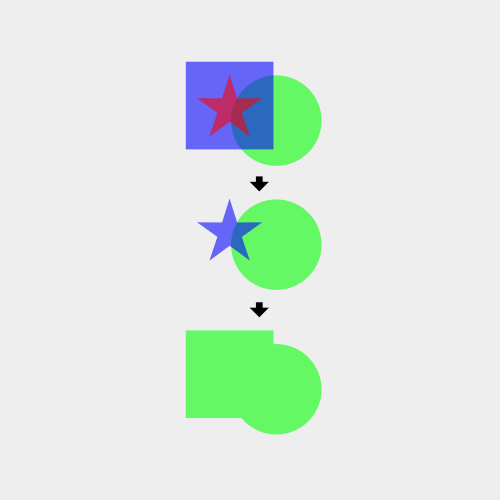
A clipped object is not a path, so if you try performing path functions on a clipped object it is not going to work the way you expect it to work. As you can see in the example above, the result of unifying the clipped blue star with the green circle is that Inkscape referenced the blue square, even though it wasn’t visible any longer. You simply cannot unify clipped objects in Inkscape.
Reason #5: Masked Objects
Path functions do not work on masked objects for the same reason they don’t work on clipped objects — they are not paths.
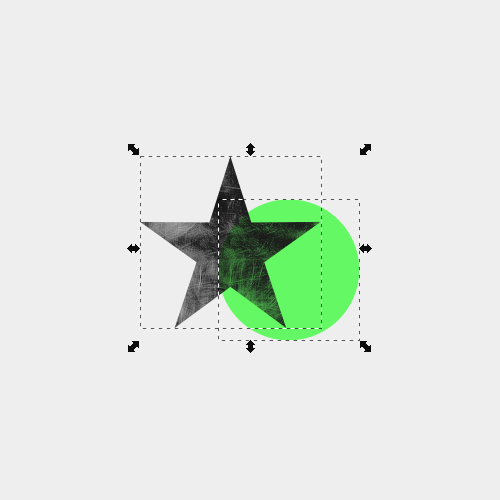
In the example above I applied a raster image to a star to give it a grunge texture (I have a tutorial on that here if you want to check that out.)
If I were to unify these objects together, the result would be a green combination of both shapes, but without the texture. This is because you cannot perform path functions on masked objects. If I wanted to apply this texture to a combination of the two shapes, I’d need to unify then together first then apply the text.
Reason #6: Objects With Filters Applied
The final reason why a path function like union is not working in Inkscape is because you’re trying to use an object that has a filtered applied, like the example below.
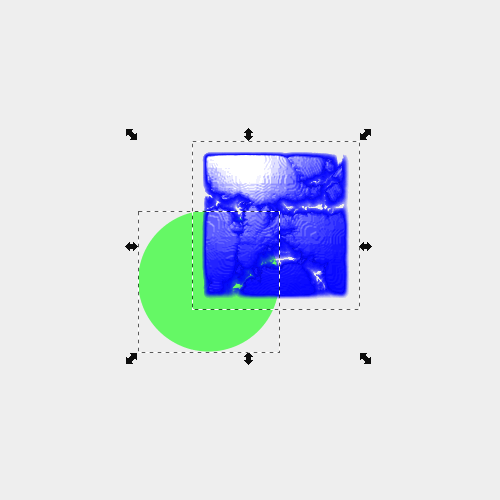
You theoretically can unify objects that have filters so long as they’re paths. However, the union function may not work as you expected. This is because takes the properties of the lowest object and applies it to the new unified object. So if I were to unify the two objects depicted above, the result would be a green combination of the circle and the square.
If I wanted the result to be a combination of the circle and the square with the filter applied, I would need to position the square beneath the circle.
Reason #7: Cloned Objects
Another reason you may not be able to apply a path operation such as union could be because you are working with an object that is a clone of another object.
Inkscape has a useful cloning feature built it. However, clones generated with this feature are not traditional paths, meaning you won’t be able to perform path operations until you “unlink” it from the original object.
To unlink a cloned object, navigate to: Edit > Clone > Unlink Clone
Once unlinked you should be able to use the Union path operation on it.
Conclusion
These are the only 6 reasons I can think of why a path function like union wouldn’t be working as expected. If none of these addressed your problem then leave a comment below and I’ll see if I can help. As always, thanks for watching!
Learn To Master The SoftwareGain a complete understanding of your favorite design apps with my comprehensive collection of video courses. Each course grants access to our private community where you can ask questions and get help when needed.
|
||||||||||||||||||||||||||||||||

 81 Videos
 11 Modules




You might also like


31 comments
-
-
-
Peet
I am trying to add a stem to a leaf by drawing a long thin rectangle to a leaf. It won;t combine. If I draw a box using same tool it works.
-
Derek
Hi been reading about Union
I’m using a IMac with latest version of Inkscape and having problems. I select both paths to union stays as one unless I select something else then it is two paths againIs this a problem with latest version would it be better to down load .92 earlier version thanks
-
Nick Saporito
Hi Derek, I’m having trouble understanding what you’re describing. Could you elaborate on that?
-


Comments are closed.
Sean
I managed to workaround this union problem by exporting the whole document in a PLAIN SVG file, then importing it back in inkscape again.