

How To Change The Inkscape Default Template
How To Change The Inkscape Default Template https://logosbynick.com/wp-content/uploads/2019/03/inkscape-default-template-1024x602.png 1024 602 Nick Saporito https://secure.gravatar.com/avatar/8e31bf392f0ba8850f29a1a2e833cdd020909bfd44613c7e222072c40e031c34?s=96&d=mm&r=gIn this tutorial I’ll be demonstrating how to change the Inkscape default template, otherwise known as the startup file.
I’m making this tutorial in response to some feedback I received about my dark theme tutorial. Many of you remarked that you’d like the work space (or canvas) to be dark as well. There’s two ways to do this. Let’s briefly go over both.
Document Properties
The first way is to manually change the background color yourself using the Document Properties menu.
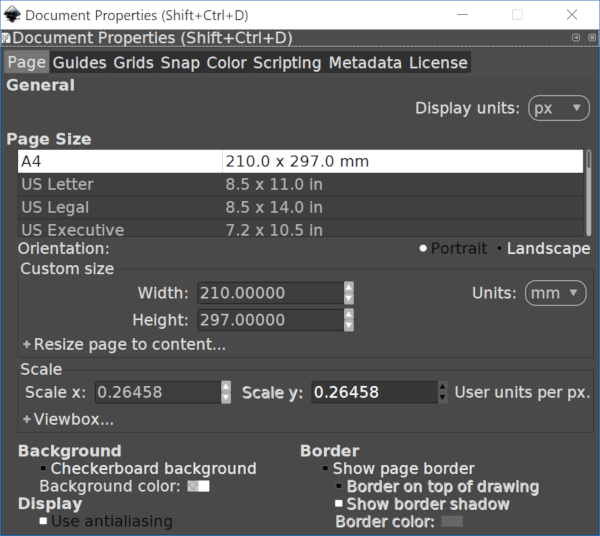
Go to File -> Document Properties, then click on the white stripe in the Background Color area. Another menu will pop up where you can manually change the background color of the document to whatever you’d like.
Inkscape Default Template
The second method is to change Inkscape’s default startup file. This would be recommended if you don’t feel like manually changing the background color of your document every time you use Inkscape.
Open a folder in Windows and go to Local Disk (C:) -> Program Files -> Inkscape -> Share -> Templates and look for a file titled default.svg.
This is the Inkscape default template. Whichever file is titled “default.svg” in this folder will be the file that Inkscape loads when you launch it. So all we’re going to do is swap out the default template with another template that has the background color already set.
Change the name of “default.svg” to “old-default.svg”, then download the new default startup file here: inkscape-startup-files.zip
Grab the file titled “new-default.svg” and paste it into the Templates folder, then change its name to “default.svg”. This will now be the Inkscape default template on startup.
Here’s how the old default template look…
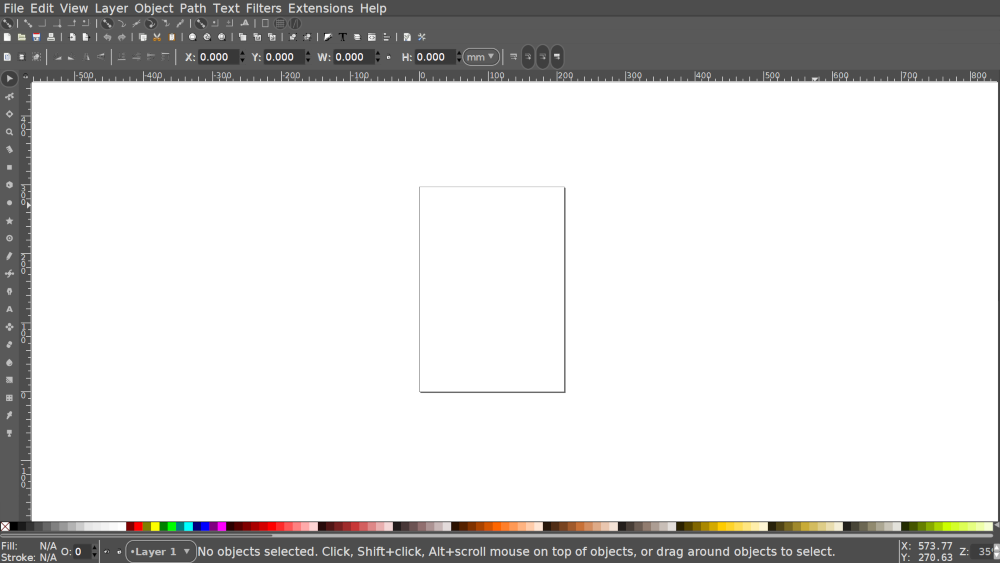
Click to enlarge
And here’s how it will look with the new default template…
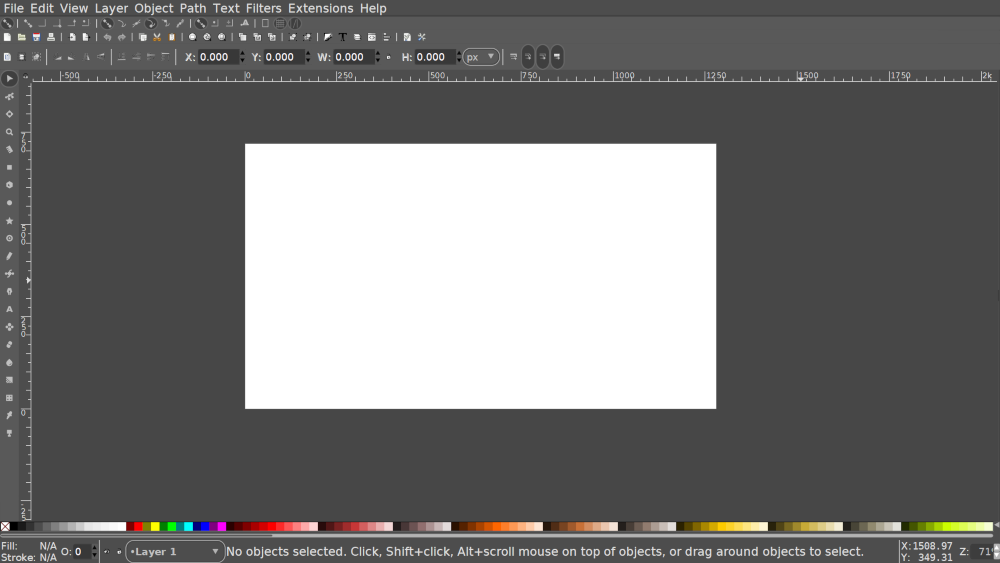
Click to enlarge
I’ve also included a copy of the original startup file in case something goes wrong and you need to recover it.
If any of these steps were unclear then I would recommend watching the video tutorial at the top of the page. As always, thanks for watching!
Learn To Master The SoftwareGain a complete understanding of your favorite design apps with my comprehensive collection of video courses. Each course grants access to our private community where you can ask questions and get help when needed.
|
||||||||||||||||||||||||||||||||
 81 Videos
 11 Modules


You might also like



31 comments
-
-
-
Aviv
It’s a great tutorial and very easy to follow, but unfortunately it didn’t work out.
I’m using the (at the time I’m writing this) newest version on Windows 10.
The only differences I can see are that I installed Inkscape in German and that I don’t have it installed on my C drive, but on a different one. Could you give me some advise on how I could still get this to work?-
Ricardo
Vá na pasta C:\Program Files\Inkscape\share\templates e mude o arquivo que está no seu idioma.
-
-
-
Nick Saporito
I think you need special permissions to do that in Ubuntu. Can’t say for sure though, it’s been a while since I used it.
-
Steve
You have probably figured out the solution.
If not try this.
/home/YOURHOMEFOLDER/.config/inkscape/templates/default.svg.
1. load and edit in inkscape.
2. create it in inkscape if not there originally.You should use the /HOMEFOLDER/ .config and .local files etc, to personalise your workflow.
Especially as you were not aware that you were editing at the system global level. Better to stay in your home folder. Most apps look there and store your configs and prefs there.
-
-
Anonymous
doing it on ubuntu linux…
nothings happening sorry im just a newbie… peace Great job by the way. i just hope you can still help me with this peace ::D -
Buddy
Thanks for a great video Nick! I’ve been using Inkscape for awhile now and every time I watch one of your videos I learn more! And if it wasn’t for you I would have gave up on it.
Thanks again
Buddy


Comments are closed.
Anonymous
Thank you very much, now my Inkscape looks the way I like. It was looking pretty ancient compared to Gimp on laptop.