


Simple Fix: GIMP Not Erasing To Transparency
Simple Fix: GIMP Not Erasing To Transparency https://logosbynick.com/wp-content/uploads/2018/01/gimp-eraser-not-erasing-transparent-1024x602.jpg 1024 602 Nick Saporito https://secure.gravatar.com/avatar/8e31bf392f0ba8850f29a1a2e833cdd020909bfd44613c7e222072c40e031c34?s=96&d=mm&r=gToday I’ll be addressing a very common problem many of you run into when using the eraser tool in GIMP. I get asked this question a lot: why isn’t the eraser tool erasing to transparency? Instead, it may be erasing to white, black, or some other color. Let’s diagnose why.
Just a heads up — there’s a video explanation below if you prefer watching over reading:
Update 4/6/2020: Added another possible reason, however it’s not addressed in the video.
Eraser Not Erasing To Transparency
If your eraser isn’t erasing to transparency in GIMP, it can be for any of the following reasons…
- Your layer doesn’t have an alpha channel
- You don’t have the proper layer selected
- You have a selection enabled and are trying to erase contents outside of that selection
- Your eraser’s opacity setting is too low
- Your eraser’s hardness setting is too low
- You have anti erase enabled in the tool settings
- You have Lock Pixels enabled in the layers menu
Let’s explore these reasons further.
Alpha Channels
The most common reason why the eraser tool isn’t erasing to transparency is because there isn’t an alpha channel added to the layer. An alpha channel is essentially a transparent layer that gets positioned beneath your image (even though there’s no actual layer for it in the layers menu.) Without it, the GIMP eraser will erase to white. With it, it’ll erase to transparency.
The fix for this is quite simple, really — just right-click on the layer you’re trying to erase and select Add Alpha Channel.
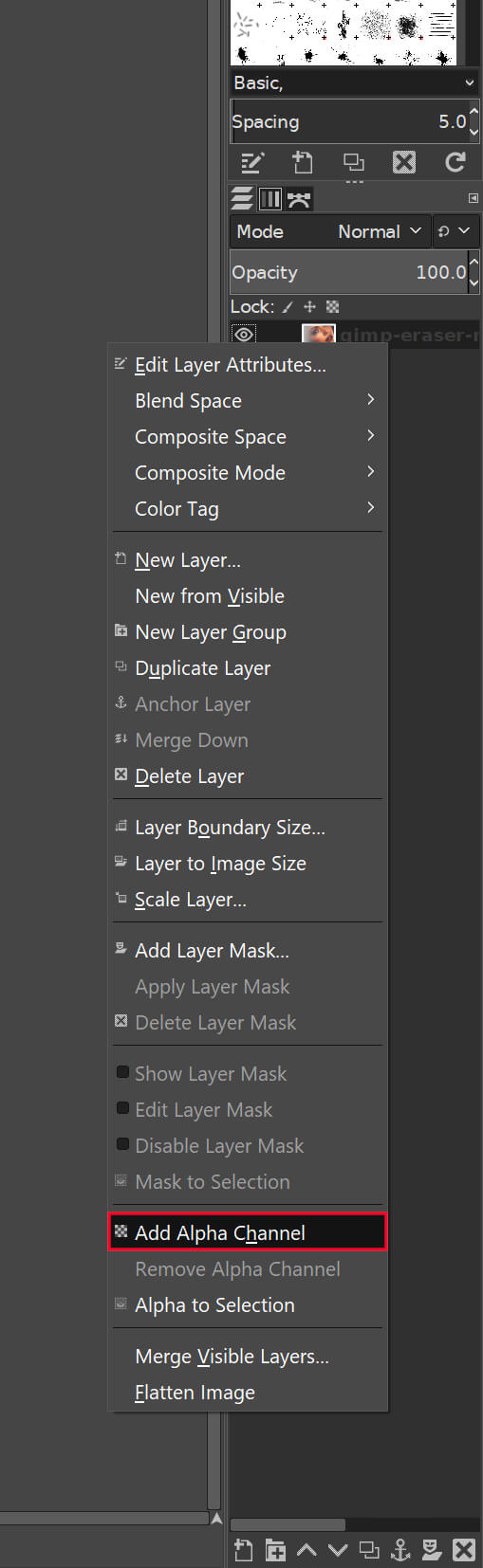
If the selection isn’t grayed out and you can actually click on it, there’s your problem. Click on it and you’re good to go. However, if the selection is grayed out (meaning there’s already an alpha channel added,) then something else has gone wrong. Keep reading to find out.
Activate The Proper Layer
This may seem like common knowledge, but it’s a mistake that even I foolishly make once in a while.
The eraser will only work on the layer you have selected, so if you’re furiously trying to erase an image and nothing is happening on your canvas, it’s probably because you have a different layer selected. Double check to make sure you’ve activated the correct later.

Selections
If you have an active selection within GIMP at the moment, the eraser is only going to erase whatever is inside of that selection.

To rectify this, go to Select -> None and see if that does the trick.
Eraser Opacity
A less common reason why you may be having trouble erasing your image could be because the eraser opacity is set to 0. Check the Tool Options panel and make sure the Opacity slider is all the way up at 100%.

While you’re at it, go ahead and check which brush head you’re using with the eraser as well. This is unlikely to be a problem, but it’s possible if you’ve selected a corrupted brush. Try out several just to be sure.

Eraser Hardness
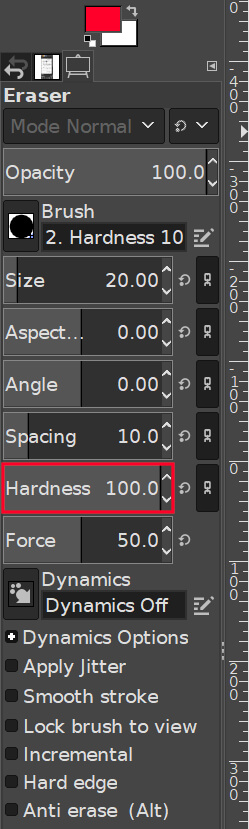
In GIMP version 2.10 and later, there’s now a Hardness option in the Eraser tool menu. Having it set at anything less than 100 will reduce the size of the space your eraser erases, so make sure you have it set to 100.
Anti Erase
Another reason why your eraser may not be erasing to transparency is because you have anti erase enabled in the tool settings. This will prevent the eraser from doing its job.
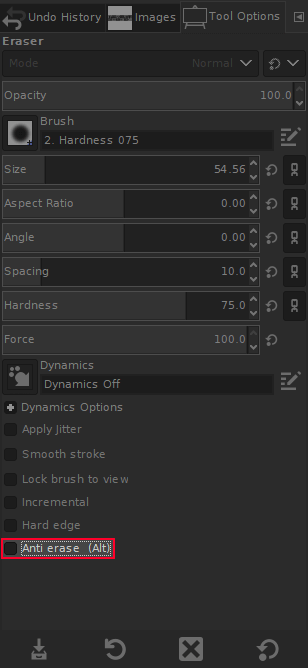
With the eraser tool selected, navigate to the bottom left-hand side of your screen to the tool settings. At the very bottom of the list you should see Anti erase (Alt). Make sure it is not enabled. If it is, that’s probably why your eraser isn’t working the way you expect.
Lock Pixels
In the layers menu, just above the layers’ names, check to make sure you don’t have the Lock Pixels icon enabled. It is represented by a little paintbrush icon.

If that feature is enabled go ahead and click it to deactivate it, otherwise you won’t be able to erase to transparent.
No Luck?
That should cover all bases and fix any problems you may have trying to erase images in GIMP, but if you’ve tried everything listed above and your eraser still isn’t working, leave a comment below with an explanation and/or screenshot and I’ll see what I can do to help you out.
Learn To Master The SoftwareGain a complete understanding of your favorite design apps with my comprehensive collection of video courses. Each course grants access to our private community where you can ask questions and get help when needed.
|
||||||||||||||||||||||||||||||||

 81 Videos
 11 Modules




You might also like
63 comments
-
-
-
-
Ecopix
Really helpful post, thank you. For what it’s worth for other users, none of the possibilities solved the issue for me. I uninstalled GIMP 2.10.2 completely (Windows 7/64bit), then reinstalled it, and away she went, problem solved, good as new. Until next time!
-
Nick Saporito
Thanks for the feedback. Maybe a fresh reinstall can help others with a similar problem.
-
Anonymous
Hi there, I have the same issue, but reinstalling didn’t work for me. Actually, not only the eraser but most my tools suddenly stopped working, like Smudge and Clone. What can I do?
-
-
-
shadebug
So I just had a fun realisation when I was trying to composite two images and the eraser was just showing me white instead of the image underneath. I was thinking it couldn’t be the alpha channel because there was a lower layer but it turns out that it was. Apparently if you have a PNG as your top layer (and presumably for GIF too) you have to add in the alpha channel for that layer or it won’t have transparency in the palette and will just go to white
-
Anonymous
I found another reason in gimp why you may not be able to erase, the brushes have an anti erase option if you scroll all the way to the bottom of the options on the brushes.
-
Nick Saporito
I wasn’t aware of that. At first glance I don’t see that option anywhere, but I’ll take a closer look once I get a chance. Thanks for the input!
-
-
-


Comments are closed.
Ryan
The layer pixels could also be locked. I found this out today as I was going through this article. The lock settings are on the layers toolbar, just above the list of individual layers. I had to unlock the layer pixels and then transparency finally worked. I probably clicked the lock by accident because that’s never happened to me before 🙂