


Inkscape Fix: How To Move Gradients with Objects
Inkscape Fix: How To Move Gradients with Objects https://logosbynick.com/wp-content/uploads/2018/02/inkscape-move-gradient-with-object-1024x602.png 1024 602 Nick Saporito https://secure.gravatar.com/avatar/8e31bf392f0ba8850f29a1a2e833cdd020909bfd44613c7e222072c40e031c34?s=96&d=mm&r=gA problem many of you run into when following my Inkscape tutorials is that when you attempt to move an object that you’ve applied a gradient to, the gradient doesn’t move with it. It stays in place as if it were its own separate entity.
This is kind of a silly feature if you ask me, because in the 7+ years that I’ve been using Inkscape on a full-time basis, not once have I ever needed a move an object independently of its gradient. In fact, the entire reason I gave it a gradient in the first place is because I wanted it to be a part of the object.
The Fix
Anyway, the solution to this is quite simple. If your gradient is bound to its location on the canvas, it’s because you have a specific setting turned off. It’s called Move gradients (in fill or stroke) along with objects. The icon for this setting appears as the following…

To locate this icon, grab your Select tool and shift your attention to the right side of the toolbar at the top of your screen. It should be positioned with 3 other similar-looking icons…
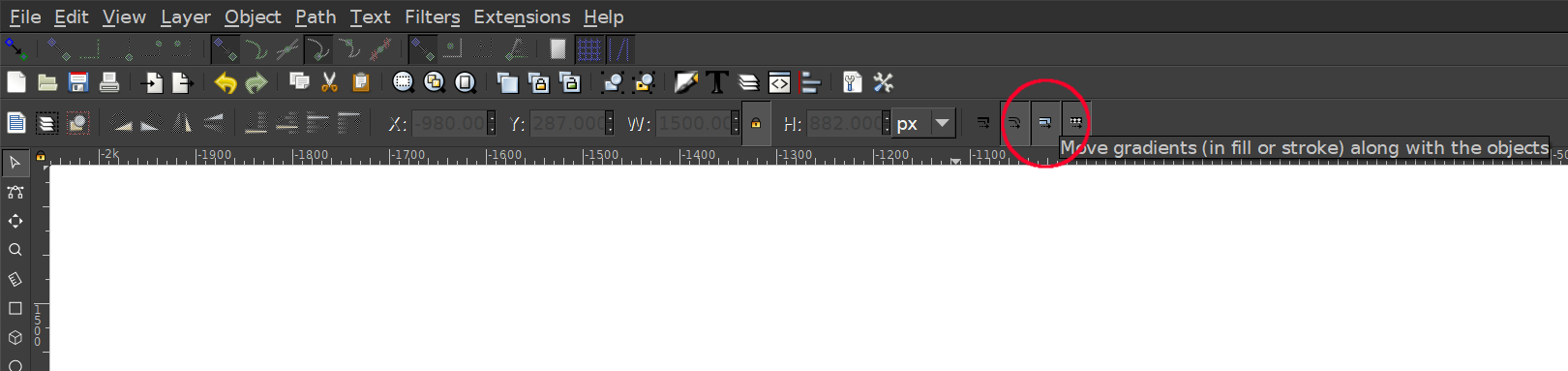
Click to enlarge
Simply select that icon so that it’s turned on. Once you’ve done that, your gradients will come along for the ride next time you move an object with its property.
By the way, if you’re curious how you can make Inkscape appear dark (like how I have,) here’s a tutorial about installing a dark theme for Inkscape. And if you’d like to update Inkscape’s icon, here’s a free pack of redesigned icons that I created.
Learn To Master The SoftwareGain a complete understanding of your favorite design apps with my comprehensive collection of video courses. Each course grants access to our private community where you can ask questions and get help when needed.
|
||||||||||||||||||||||||||||||||

 81 Videos
 11 Modules



You might also like


18 comments
-
-
-
ojulianpr
Thank you so much, i have struggled with this for so long, cant beleive it was so simple! thanks
-
-
-
-
Conan
Thank you, I finally found it. For me it was not on the toolbar, but at the far right there was a down arrow button. When I clicked it a drop down menu appears that has the option ‘Move Gradient’.
-
-
-
-
-
-
-
-
-
Maria Miller
Hello Nick,
I actually need your help with moving “color” not “gradient” with an object. I drew a lock of curly hair with the bezier pen. I ensured that all nodes were enclosed between each curl.
I was unable to use fill to add color to the hair because it would only fill half way vertically across the width of the hair.
Next I tried to spray paint the color of the hair , that seemed to work until I noticed that when I tried to use the painted lock of hair with the spray can to apply…no color
I also noticed that when I move the strand of hair, the color stays behind.
Using the move gradient tab doesn’t work for me.
I was unable to upload a screen shot of the problem…I really hope you can help. I am actually trying to create my own Logo.
Thanks
Maria -
Oliver Clozoff
Thank you! It’s pretty weird that a button for this feature even exists, but to have the default set to OFF is literally insane.
-


Lottie
Thank you SO much Nick. Once again, you have saved my sanity! What a ridiculous setting to have “on” by default !!