


Repeating an Object Around a Shape with Inkscape
Repeating an Object Around a Shape with Inkscape https://logosbynick.com/wp-content/uploads/2020/01/inkscape-pattern-along-path.jpg 800 470 Nick Saporito https://secure.gravatar.com/avatar/8e31bf392f0ba8850f29a1a2e833cdd020909bfd44613c7e222072c40e031c34?s=96&d=mm&r=gIn this tutorial I’ll be demonstrating how to use Inkscape to take an object and repeat it along the contours of a shape. To do this we’ll be using a handy path effect called Pattern Along Path.
The following is just a brief overview of the steps taken to create this effect. For complete step-by-step instructions I would highly recommend that you watch the video tutorial below:
Creating Patterns Along a Path in Inkscape
The following depiction outlines what we’ll be able to do. The object to the left will be repeated along the shape of a circle and a wavy line, as indicated on the right.
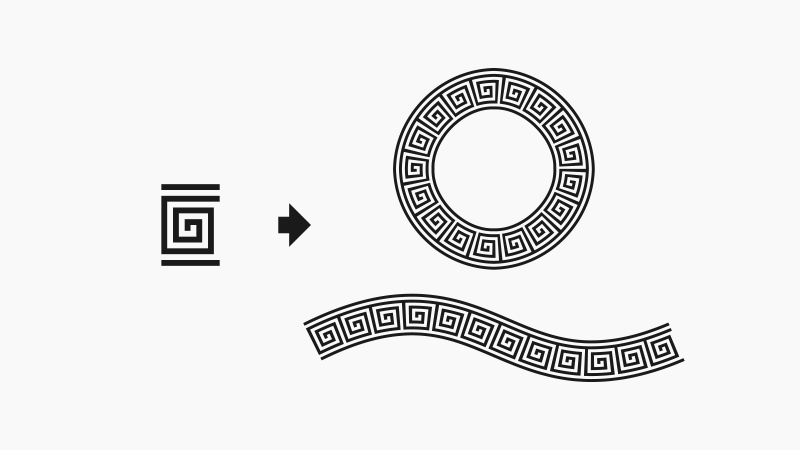
The first thing we need to do is start out with an object. It can be any object you want — a circle, a square, stars, letters, etc. For this tutorial I’ll be using the following design because I think it makes for a neat pattern when repeated.

Copy the object to your clipboard by selecting it and pressing control + c on your keyboard. Then, create the path that you’d like to repeat it along. For this example I’ll be using a circle.

Select the circle then navigate to Path -> Path Effects and choose Pattern Along Path from the drop down menu and click Add. Nothing will happen to your design just yet, but the Pattern Along Path menu should populate.
In the menu, select “Repeated, stretched” from the drop down menu, then click the lock icon on the right hand side that reads “link” when you hover your cursor over it.
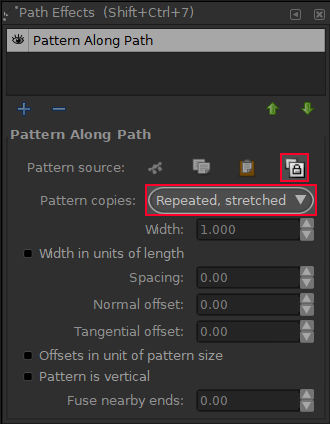
Once you click the link button, it will tell Inkscape to take whatever you have copied to your clipboard and wrap copies of it around your selected path…

This can work with any path you’d like! Here’s how it looks applied to a wavy line…
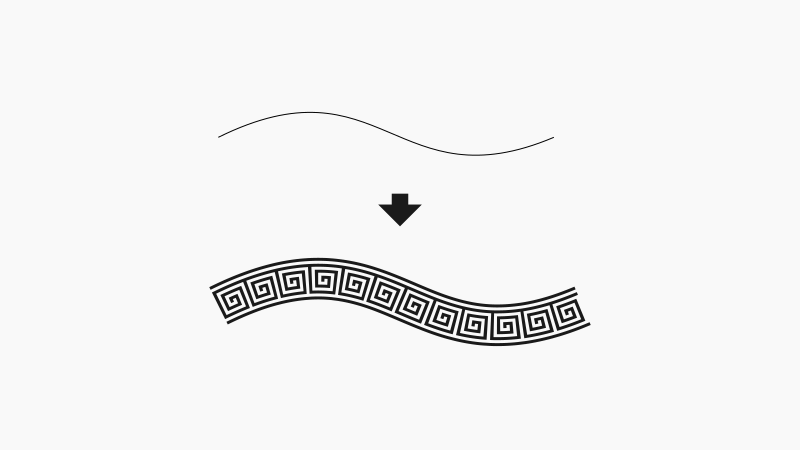
And there’s a lot more that the pattern along path feature can do, like add spaces between each object, stretch out a single object rather than repeat it, etc. I would recommend you play around with it a bit and let your creativity run wild!
Learn To Master The SoftwareGain a complete understanding of your favorite design apps with my comprehensive collection of video courses. Each course grants access to our private community where you can ask questions and get help when needed.
|
||||||||||||||||||||||||||||||||

 81 Videos
 11 Modules



You might also like


14 comments
-
-
Nick Saporito
Hi Martin, I gave it a shot but it doesn’t seem possible just yet. Having the ability to copy and paste path effects to other objects is a great suggestion for the Inkscape team though. Hopefully they can implement something like this.
-
-
ImaGeek
I want to arrange the BASES of16 flower petals around a circle. This method does not give me the option of designating the part of the object to link.
-
Oren
For some reason, the “link path to clipboard” just doesn’t work for me. It seems to randomly decide the size of the patter regardless of how I scale it. Any clue what’s happening?
-
Nick Saporito
It’s hard to say without seeing exactly what’s going on. I would make sure the copy & paste function in Inkscape hasn’t been corrupted, which happens occasionally if you’re using it on Windows. On info on how you can clear it here: https://logosbynick.com/inkscape-pasting-as-bitmap/
-
-
A. Pant
I was not able to use the rotation feature on the linked object. Scaling works fine but when I try to rotate nothing happens!
-
Alastair Montgomery
I cannot seem to get past the “Nothing on clipboard” error, see https://www.youtube.com/watch?v=oDgfPupXGRk
What am I doing wrong??-
Alastair Montgomery
Might be an issue with the Mac version, just tried it on a Linux in a VM and it worked first time.
-
-
-
-
-
Matt Bennett
No matter what I try, inkscape wraps a single instance of my design around the circle. Adjusting from “repeated, stretched” to “single, stretched” does nothing. Adjusting to just “repeated” or “single” makes everything disappear. Any idea? Just downloaded the software after seeing this video on youtube and have immediately run into a wall.
-
Nick Saporito
It may be that the design you’ve copied to your clipboard is too big. Trying scaling it down a bit.
-
-


Martin
Hello Nick,
first I want to thank you for the Masterclass and other tutorials.
I have one question to Pattern Along Path effect: “Is there a way how to apply it to several paths at once?” It seems like this path effect can work with one path only but I need to apply it to several hundreds of paths in my drawing. I tried to use “copy style” but it also does not do the job. Do you have any suggestion? Thanks.