

Wacom Intuos – The Best Drawing Tablet for Inkscape
Wacom Intuos – The Best Drawing Tablet for Inkscape https://logosbynick.com/wp-content/uploads/2019/03/best-drawing-tablet-for-inkscape-1-1024x602.jpg 1024 602 Nick Saporito https://secure.gravatar.com/avatar/8e31bf392f0ba8850f29a1a2e833cdd020909bfd44613c7e222072c40e031c34?s=96&d=mm&r=gI’m not much of a freehand artist myself, but if freehand drawing and sketching is your thing, and you’re an Inkscape user, you might want to check out the Wacom Intuos CTH490AK drawing tablet. In my opinion, the Wacom Intuos is the best drawing tablet for Inkscape because of its plug and play compatibility and ease of use. It’s also a trusted brand and quality build at a great price.
Why A Drawing Tablet?
As graphic designers we’re accustomed to designing with a keyboard and mouse, but sometimes a task or design requires the precision of a freehand tool, and this is where a drawing tablet comes in handy.
Here’s some instances where a drawing tablet is more suitable than a keyboard and mouse…
- Character illustrations
- Calligraphy and lettering
- Masking
- Drawing tablets also come in handy any time you need to create something with a natural, whimsical look and feel.
The Best Drawing Tablet for Inkscape
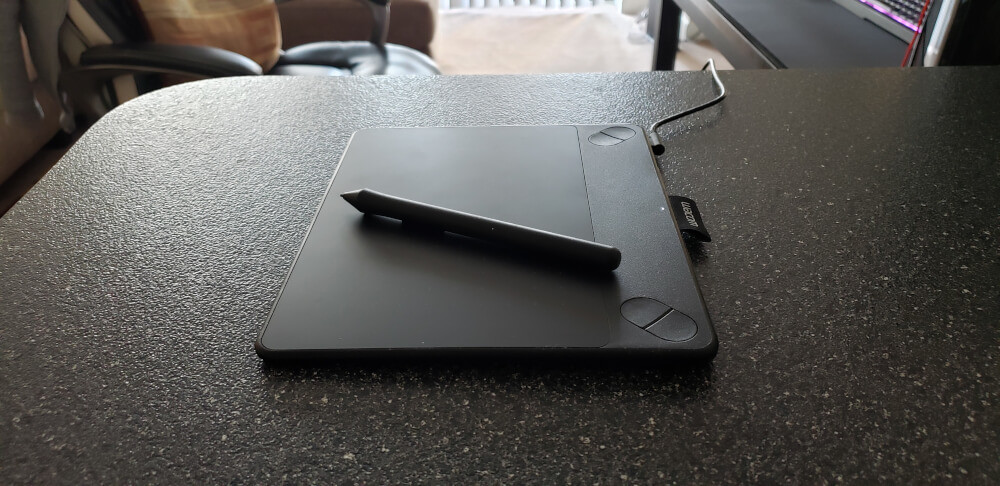
Although drawing tablets are typically more useful for applications like GIMP, they do have their place in the Inkscape workspace. The best drawing tablet for Inkscape that I recommend is the Wacom Intuos WPH.
Why I Like The Wacom Intuos CTH490AK
- Compatibility: I was able to plug the Wacom Intuos tablet into a USB port on my computer and start using it immediately. No additional software or drivers necessary (this is for Windows 10. I can’t vouch for other operating systems.)
- Ease of use: One thing I really like about the Wacom Intuos drawing tablet is how easy it is to customize. For example, I recommend programming the two buttons on the pen to perform the undo and redo functions. This is very convenient for graphic design use.
- Price: Drawing tablets vary wildly in price, and it’s not really one of those things you have to spend an exorbitant amount of money on. Since Wacom is one of the most trusted brands in drawing tablets, this Wacom Intuos tablet is the perfect mix of value and quality, and in my opinion, the best drawing tablet for Inkscape. It gives you everything you need — nothing more, nothing less — and the price reflects it.
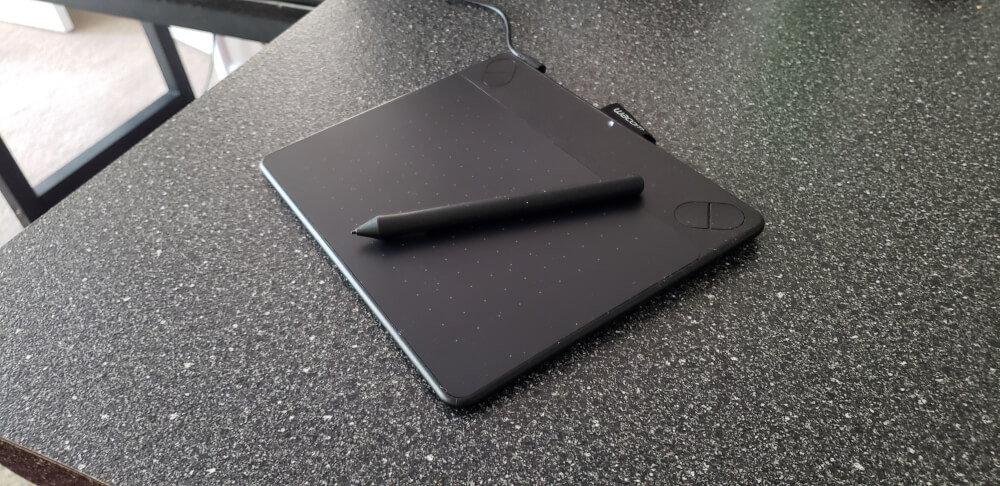
The tablet comes with a drawing pad, USB wire, and a battery operated pen.
How To Use with Inkscape
Drawing tablets function virtually the same way a mouse does. The pad/tablet represents the entirety of your screen resolution, and the pen functions how a mouse would.
Simply hover the pen an inch or two away from the pad and move it around. You will notice the cursor on your screen moving along with it. For example, if you hover the pen to the upper right side of the tablet, the cursor will move to the upper right side of your screen.
You will notice that the tip of your pen doubles as a button, and there’s also two buttons on the side of the pen.
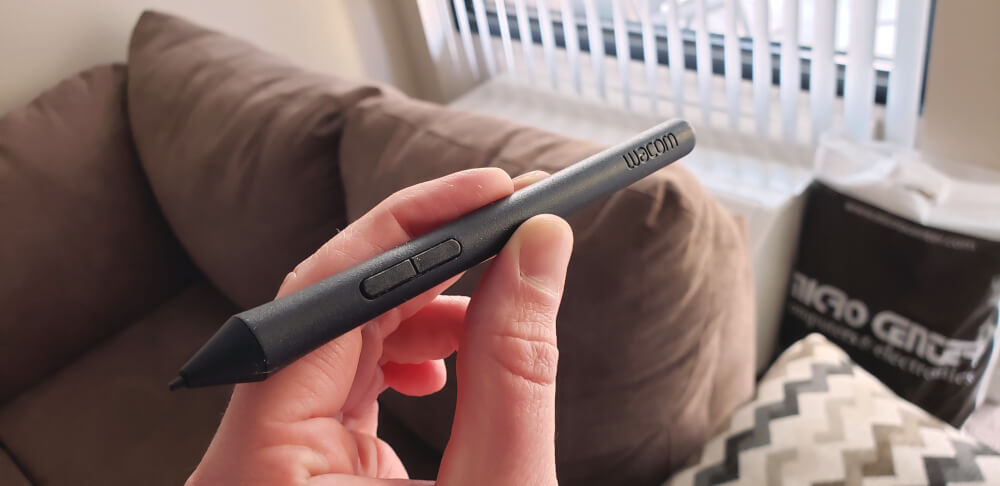
Pressing the tip of the pen against the pad performs the same function as a left mouse click. The two buttons on the side can be programmed however you’d like. As previously mentioned, I recommend programming them for undo and redo. It’s perfect for when you make a bad stroke and want to quickly erase it without having to drop the pen and reach for your mouse and/or keyboard.
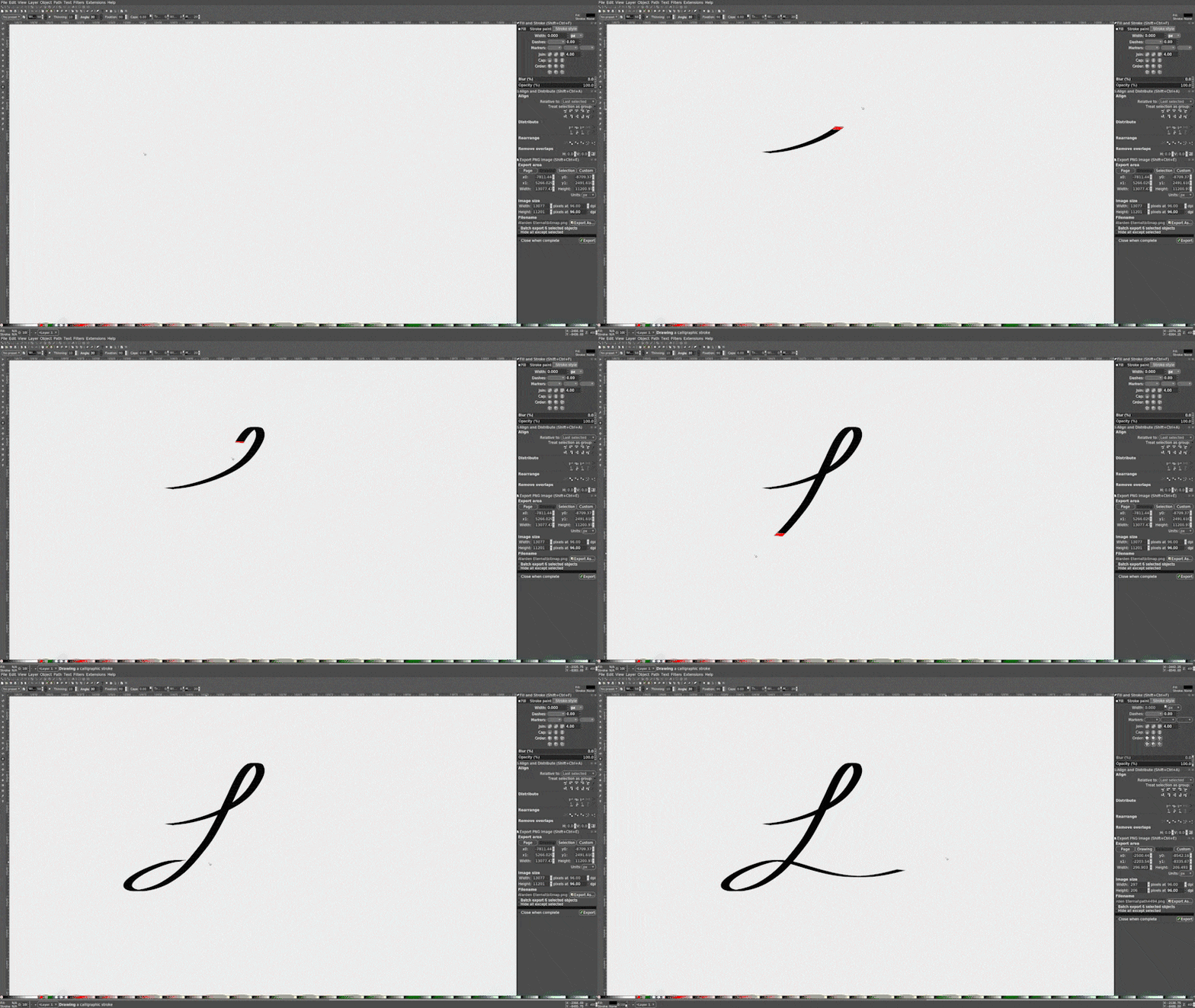
Personally, I find that the drawing tablet works best with the Draw Freehand Lines tool and the Calligraphy Pen, but it could also prove useful for other lesser-used tools like the Eraser.
Learn To Master The SoftwareGain a complete understanding of your favorite design apps with my comprehensive collection of video courses. Each course grants access to our private community where you can ask questions and get help when needed.
|
||||||||||||||||||||||||||||||||
 81 Videos
 11 Modules



You might also like


11 comments
-
-
Tom Stallard
Nick.
Your tutorials are Excellent.
I sent a post once about how to be sure of your payment.
(Get the whole amount before you finish.
But in Signwriting it was easier, cos its a left-to-right thing
Pay up the balance or I stop half way!! )My PC has finally packed up. (Dell 420).
I really need Inkscape for my work cos I am familiar with it.
Perhaps on a Wacom Stand alone Tablet. (NO PC needed, as you know)Which Tablet? The Intuos ? I do not need the pen pressures etc.
Because its basically for menus. (Clipart, Fonts,Photos)I see some at 80 odd euros! Surely not Stand alone. Cheap!!
It is so confusing. So many variations.Please advise
Website: Google “Signartsite”
Thanking you in advance.
Tom.


Comments are closed.
Felix Arenas
Thank you very much for your important information.
I use a XP-Pen Deco Pro and the pencil tool for drawing. For some projects, if you use detailed sketches for instance, it is probably better to use the bezier tool, but you can sketch with the calligraphy tool quite nicely too.
For any sort of drawing/brushing-based task it is superior compared to a mouse. You get smoother, more natural, brush movements.